
Views: 0 Author: Site Editor Publish Time: 2026-11-18 Origin: Site


Multitasking and advanced system monitoring demands are surging across manufacturing floors, control rooms, and edge computing environments. Operators need more screen real estate. They must manage complex workflows, view real-time data, and monitor security feeds simultaneously. This operational reality raises a critical engineering question: Can a Linux-based device reliably run dual displays?
The answer is a definitive yes. Windows has traditionally been viewed as the default operating system for plug-and-play multi-monitor setups. However, the technological landscape has shifted. Modern Linux distributions, paired with robust computing hardware, now deliver dual-screen configurations that are incredibly stable, secure, and efficient.
This technical guide details how to achieve a seamless multi-monitor setup. We will cover actionable hardware selection criteria, break down the software configuration process (including the critical differences between X11 and Wayland), and provide hands-on troubleshooting steps. By the end, you will know exactly how to specify the right equipment for your facility's operational needs.
A Linux-based system natively supports dual displays, provided the hardware features the necessary physical ports (such as HDMI, VGA, or DisplayPort) and a capable GPU.
Modern Linux Desktop Environments like KDE Plasma and GNOME offer intuitive, plug-and-play multi-monitor support without requiring manual driver installations.
Command-line tools like xrandr give system administrators granular control over screen orientation, resolution, and physical positioning for automated workstation deployments.
Selecting hardware with native Linux support—especially systems certified for Kylin or UOS—eliminates driver compatibility headaches out of the box.
Dual displays drastically improve productivity in demanding use cases like SCADA monitoring, PLC programming, and automated factory management.
For facility managers wondering about compatibility, Linux handles multiple screens with exceptional stability. A successful dual-display setup relies on two foundational pillars. First, the physical hardware capabilities of the machine. Second, the graphical architecture of the Linux operating system itself.
Recent market analyses reveal a definitive migration toward open-source architectures in factory automation. As facilities aggressively transition to Industry 4.0, the reliance on heavy, proprietary software is actively waning. Lightweight Linux-based edge devices are increasingly tasked with driving complex, multi-monitor visualization dashboards. This industry-wide shift is largely driven by the need to eliminate recurring commercial OS licensing fees while maintaining rock-solid uptime for SCADA and HMI applications.
Furthermore, the outdated misconception that Linux struggles with display drivers needs to be retired. Modern Linux kernels ship with built-in, open-source support for standard graphics architectures. Whether utilizing integrated graphics from embedded processors or dedicated GPUs, the Linux ecosystem is fully equipped to manage extended desktops and mirrored displays flawlessly.
In a high-stakes control room, every second counts. Operators rely heavily on Supervisory Control and Data Acquisition (SCADA) systems to keep facilities running safely. A dual-screen setup allows operators to keep critical control panels permanently open on the primary screen. Simultaneously, the secondary screen handles real-time data feeds, machine diagnostics, or CCTV security cameras. This physical separation ensures no critical alarms are ever hidden behind minimized windows.
Automation engineers frequently utilize a robust industrial PC for programming logic controllers (PLCs) or designing system architectures. A dual setup provides the digital breathing room required to write code on one monitor while cross-referencing technical documentation or live testing outputs on the other. Linux also natively supports mixed orientations. An engineer can position one monitor horizontally for GUI design while rotating the second vertically—an optimal layout for parsing long strings of ladder logic or reading extensive server logs.
In commercial and manufacturing environments, a single computing device often drives multiple displays. A well-configured machine easily powers two separate customer-facing display boards or overhead factory floor status screens. Consolidating the processing workload into one unit drastically reduces hardware procurement costs and lowers ongoing network maintenance overhead.
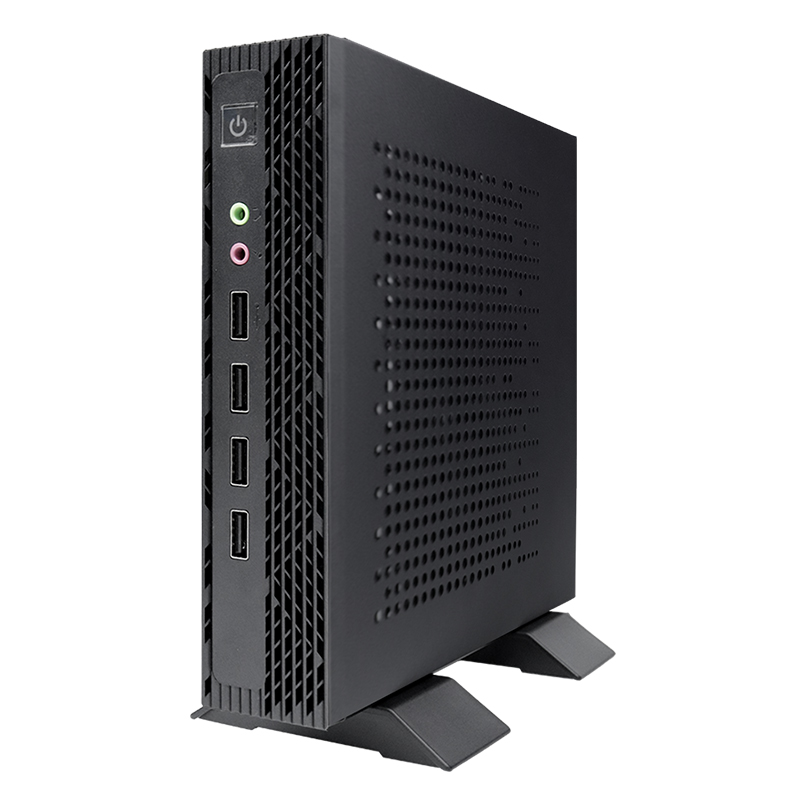
Before diving into software configurations, verify the physical output ports on your hardware. Manufacturing environments require a pragmatic mix of modern and legacy connections. To simplify selection, refer to the interface comparison below:
Interface | Signal Type | Industrial Application |
|---|---|---|
VGA | Analog | Legacy CRT monitors, older HMI panels on the assembly line. |
HDMI | Digital | Modern SCADA dashboards, control room visualization screens. |
DisplayPort (DP) | Digital | High-precision CAD rendering, daisy-chaining multiple displays. |
Combinations like native HDMI and VGA are highly practical in legacy-friendly settings. They allow an operator to connect a modern digital dashboard via HDMI alongside a legacy analog factory display via VGA without relying on fragile adapters.
Pushing pixels to two screens simultaneously depends heavily on the processing unit housed within your mini industrial computer. Modern CPUs tailored for automation—such as Zhaoxin, Phytium, and Loongson architectures—feature highly capable integrated graphics. These embedded GPUs easily handle standard dual video outputs at 1080p or 4K resolutions without generating excessive thermal load. For 2D rendering, SCADA interfaces, and web-based data monitoring, these integrated chips perfectly complement fanless chassis designs.
If your hardware lacks a specific legacy port, Linux provides excellent support for active adapters. Need to connect a VGA monitor to a modern DisplayPort output? An active DP-to-VGA adapter seamlessly bridges the digital-to-analog gap. When utilizing USB-based display adapters, ensure the specific chipset (such as DisplayLink) has up-to-date Linux drivers available for your chosen distribution.
The Desktop Environment (DE) dictates how smoothly you interact with display settings. GNOME and KDE Plasma stand out as the leading choices. Both offer highly intuitive, graphical user interfaces. Users simply drag and drop screen icons to arrange their physical layout. For low-power edge devices, lightweight alternatives like XFCE support dual screens flawlessly, though they may require slight manual tweaking for complex resolution scaling.
Understanding the underlying display server protocol is critical for system administrators. X11 is the legacy standard. It relies on robust command-line tools like Xrandr, offering massive customization power and broad compatibility with decades-old legacy applications. In contrast, Wayland represents the modern standard. Engineered for enhanced security and smoother graphical rendering, Wayland excels when using two monitors with vastly different resolutions. It handles independent fractional scaling natively, preventing text from appearing oversized on a 1080p screen and microscopic on a 4K display.
Mainstream distributions like Ubuntu LTS and Debian offer exceptional out-of-the-box support. However, in specialized manufacturing and government sectors, industrial-focused operating systems like Kylin and UOS are highly recommended. These specialized OS versions are deeply optimized for specific hardware architectures. They ensure display drivers and dual LAN network interfaces function reliably without manual intervention.
For operators running GNOME, KDE, or XFCE, configuring two screens is a straightforward visual process. First, physically connect both monitors to their respective ports while the system is powered down. Boot up the machine. Navigate to the system's "Settings" menu and select "Display." You will see two numbered rectangles representing your connected screens. Click and drag these rectangles to match the actual physical placement of the monitors on your desk. Select your primary display, adjust the resolution, and click "Apply."
Advanced users running X11 can configure displays directly from the terminal. This method is invaluable for creating automated deployment scripts across multiple factory workstations. Open a terminal and type xrandr to view all connected display outputs. To configure the layout, execute a command such as: xrandr --output HDMI-1 --auto --right-of VGA-1. This command automatically detects the optimal resolution and logically positions the HDMI monitor to the right of the VGA monitor.
Operational workflows dictate how screens should behave. "Extended Desktop" mode treats both screens as one continuous workspace. This allows operators to drag windows from one monitor to the other for maximum multitasking efficiency. Conversely, "Mirrored Displays" duplicates the exact same image on both monitors. This cloned setup is ideal for factory floor status monitors where multiple people in different locations need to view identical production data.
If the secondary monitor remains blank, begin with basic hardware verification. Ensure cables are securely seated and the monitor is set to the correct input source. Next, reboot into the system BIOS/UEFI settings. Some specialized industrial motherboards require you to manually enable "Multi-Monitor Support" or activate specific legacy ports at the hardware level. Finally, run the xrandr command. If the port registers as "disconnected" despite being plugged in, you are likely dealing with a faulty cable or physical port damage.
A frequent pain point involves closed-source, proprietary hardware. If your system utilizes a dedicated NVIDIA GPU, the default open-source driver (Nouveau) may occasionally struggle with multi-monitor stability. This results in screen flickering or graphical artifacts. To resolve this, open your distribution's "Driver Manager" application and switch from the open-source driver to the official, proprietary NVIDIA driver. A quick reboot usually resolves lingering display glitches.
A jarring visual issue arises when pairing a high-resolution 4K screen with a standard 1080p monitor on the legacy X11 server. Dragging a window between these screens causes the user interface to look disproportionate. If your workflow demands mixed resolutions, switch your desktop session from X11 to Wayland at the login screen. Wayland's native support for independent fractional scaling allows you to enlarge the UI on the 4K monitor while leaving the 1080p monitor untouched.
In field deployments, hardware reliability dictates system uptime. Sourcing a dedicated Linux Industrial PC like the BPC-103 provides a highly capable solution. Engineered with robust CPU options—including Zhaoxin, Phytium, and Loongson architectures—these units are deeply integrated with Linux kernels. Crucially, they feature both HDMI and VGA ports natively on the I/O panel, alongside Dual LAN capabilities. This specific combination makes dual display setups effortless and ensures IT/OT network separation. Readiness for domestic operating systems like Kylin and UOS guarantees that display drivers are pre-configured for maximum operational stability.
For applications spanning harsh environments, ruggedized, fanless designs are mandatory. These heavy-duty units are meticulously built to withstand wide temperature variations, airborne particulate matter, and constant machine vibration. Having native dual-screen capabilities on a ruggedized machine means operators can comfortably monitor complex automated assembly lines without risking hardware failure due to dust ingress or thermal throttling.
A properly configured Linux system is more than capable of running dual displays. It offers unmatched stability, robust security, and incredible flexibility for industrial applications. The days of struggling with obscure display drivers are over, replaced by modern, plug-and-play desktop environments and powerful open-source kernels.
Ultimately, a successful deployment comes down to selecting the right hardware. Look for correct physical ports—such as native HDMI and VGA connections—and pair them with a well-supported Linux operating system. By bridging the gap between powerful software and rugged hardware, facilities can create highly efficient, multi-screen workstations that drastically improve operator response times.
If you are planning to upgrade your facility's visualization capabilities, we encourage you to explore high-quality, dual-display-ready hardware. Browse through extensive catalogs of robust industrial computing solutions to find the perfect fit for your specific automation, SCADA, or edge computing project today.
Modern integrated graphics easily handle standard dual displays at 1080p for essential tasks like system monitoring, data entry, or coding with virtually no noticeable impact on overall CPU performance. However, if your application requires rendering complex 3D CAD models or running dual 4K video streams simultaneously, utilizing a system with a dedicated GPU is strongly recommended to maintain optimal frame rates.
Yes, absolutely. Modern Linux display settings and command-line tools like xrandr allow users to rotate a specific screen 90 degrees (portrait mode) while keeping the other monitor in a standard landscape orientation. This mixed-orientation setup is highly favored by software developers and network engineers who need to read long scripts or server logs efficiently.
If your hardware lacks a second dedicated video output port, you can utilize a high-quality USB 3.0 to HDMI adapter. Ensure you install the appropriate DisplayLink drivers for your specific Linux distribution. Alternatively, if your computer features a modern USB-C port supporting DisplayPort Alternate Mode (Alt Mode), simply use a direct USB-C to HDMI or DisplayPort cable to drive the secondary screen without any driver installation.
In the vast majority of cases, no. Most standard monitors and integrated graphics chips are completely plug-and-play, utilizing the robust open-source drivers built directly into the modern Linux kernel. If your specific hardware configuration uses a dedicated NVIDIA graphics card, it is highly recommended to install the proprietary NVIDIA drivers through your distribution's driver manager to ensure a glitch-free experience.
Yes, this advanced setup is achievable through system virtualization. You can run a stable Linux host operating system on your primary machine and use a Virtual Machine (VM) to run Windows simultaneously. By utilizing a technical method called GPU passthrough, you can dedicate one monitor and specific hardware resources entirely to the Linux host, and assign the second monitor directly to the Windows VM.
For ease of use and out-of-the-box compatibility, Ubuntu LTS, Linux Mint, and Fedora are excellent choices due to their polished desktop environments (GNOME or KDE). In industrial and government applications, localized operating systems like Kylin or UOS are highly recommended, as they are specifically certified to run flawlessly on industrial hardware architectures like Zhaoxin and Loongson.
A secondary monitor may go undetected due to physical connection issues, disabled BIOS settings, or missing proprietary drivers. First, check the cable and monitor input source. Next, run the xrandr command in the terminal to see if the system detects the hardware port. If you are using an NVIDIA GPU, ensure you have switched from the open-source Nouveau driver to the proprietary NVIDIA driver via your system's driver manager.


