
Views: 0 Author: Site Editor Publish Time: 2026-08-26 Origin: Site


In industrial automation environments, operators need clear visibility and accurate touch control when monitoring machines and production processes. Choosing the right industrial panel PC size and planning the touchscreen layout are important factors that affect operation efficiency and user experience.
A 17-inch industrial panel PC provides a balanced display area for machine control, data monitoring, and HMI applications, especially where installation space and screen visibility are both important.
Industrial hardware investments often underperform. It is rarely due to processing limitations. Poor physical integration causes operator fatigue, input errors, and reduced throughput. Deploying a 17-inch display provides significant screen real estate for complex SCADA or machine control interfaces. However, applying consumer monitor placement rules to industrial environments ignores physical constraints. Standing operators, gloved interactions, and high-frequency touch tasks require a different approach. Maximizing the return on industrial computing hardware requires a mathematical and ergonomic strategy for physical placement. You cannot just bolt a screen to a machine frame and expect optimal performance. This guide breaks down how to calculate optimal viewing distances, map interactive touch zones, and select mounting configurations based on specific industrial workflows. We will look at real-world variables like enclosure depth, glare from high-bay lighting, and the biomechanics of repetitive motion.
Interactive vs. Monitoring Distances: The optimal viewing distance for a 17-inch touch interface is dictated by maximum comfortable arm reach (typically 20–24 inches), whereas passive monitoring can extend to 30–40 inches based on visual acuity standards.
Touch Zone Mapping: High-frequency controls must be positioned in the lower-center "primary reach zone" to prevent shoulder fatigue (the "gorilla arm" effect) during continuous operation.
Workflow-Specific Mounting: A CNC control touch computer requires different height and tilt angles (optimized for standing, rapid input) compared to an industrial inspection workstation (optimized for seated, high-fidelity visual analysis).
Hardware Dependencies: Screen placement dictates technical requirements, including necessary viewing angles (IPS vs. TN panels), brightness levels, and touch sensor types (PCAP vs. Resistive).
17-Inch Panel PC Advantages:
1. Balanced Display Area
2. Space Efficiency
3. Better Operator Interaction
machine control
production monitoring
equipment interface
Key Display Features for a 17-Inch Industrial Panel PC
✔ High-resolution display
✔ Wide viewing angle
✔ High brightness
✔ Anti-glare surface
✔ Capacitive/resistive touchscreen options
Establishing a reliable ergonomic baseline requires understanding the physical dimensions of a 17 Inch Industrial Panel PC. Consumer displays prioritize widescreen 16:9 formats for media. Industrial panels frequently utilize standard 5:4 or 4:3 aspect ratios. These legacy ratios remain dominant on the factory floor. They align perfectly with older SCADA software designs and provide superior vertical screen real estate. A standard 17-inch display measures roughly 13.3 inches in width and 10.6 inches in height. This geometry directly impacts the operator's vertical field of view. It allows more data rows, machine states, or control tiers to be visible without requiring the operator to scroll or shift their physical stance.
Applying consumer distance formulas to industrial environments is an engineering mistake. Consumer guidelines suggest sitting 1.5 times the vertical height of the screen away. They might suggest using the screen width as a minimum viewing distance. In a factory setting, these rules fail entirely. Industrial touch interfaces prioritize rapid physical reach and operator mobility over cinematic immersion. If an operator stands 20 inches away from a 17-inch screen based on visual guidelines, but their comfortable reach only extends 18 inches, the installation introduces biomechanical strain. The screen must sit where the hand can easily interact with the interface. Touch reach is the primary limiting factor, not visual field saturation.
The operational cost of poor ergonomics extends far beyond minor operator discomfort. Improper placement introduces severe parallax errors during touch targeting. When a screen sits too high or too far away, the operator views the interface at an extreme angle. The physical gap between the touch sensor glass and the actual LCD panel causes the visual target to misalign with the touch registration point. This leads to accidental machine activations or missed inputs.
Consider the following operational risks of poor placement:
Increased cycle times due to operators hesitating before pressing poorly aligned buttons.
Cumulative musculoskeletal strain in the lower back, neck, and shoulders from repetitive reaching.
Slower reaction times during machine faults, turning minor warnings into production halts.
Higher screen wear in localized areas as operators drag fingers to find the actuation point.
Accurate distance calculation begins with defining the real eye-to-screen distance. Do not rely on the mechanical mounting depth. A common integration error occurs when engineers measure the distance from the back of the machine enclosure or the edge of the workstation desk to the screen surface. This static measurement ignores the physical reality of the operator. During active tasks, operators lean in, shift their weight, or step back to observe moving machinery. A NEMA 4X enclosure might push the screen surface four inches closer to the operator than the base mounting point suggests. The true viewing distance must be calculated from the physical position of the operator's head during the most active interaction phases. Failing to account for operator posture results in screens that are technically mounted at the correct desk depth but practically unreadable in real-world conditions.
Visual acuity and pixel density play a major role in determining how far away an operator can stand. A standard 17-inch industrial display typically features a resolution of 1280x1024. This resolution results in a specific pixel pitch that dictates text clarity. To ensure legibility without eye strain, industrial interface design relies on a strict mathematical formula. The minimum legible character height should be at least 1/200th of the viewing distance.
If an operator stands 40 inches away from the panel, the text on the screen must be at least 0.2 inches tall. If the software cannot scale the text to meet this requirement, you must reduce the physical mounting distance.
For touch-enabled interfaces, visual acuity must balance against the biomechanical limits of human interaction. We call this the arm's length rule. Standard ergonomic reach for a standing adult operator ranges from 20 to 28 inches. This depends heavily on their height and shoulder mobility. The ideal visual distance for a 17-inch screen might comfortably sit between 25 and 35 inches for passive monitoring. However, the necessity of touch input forces a compromise. You must mount the screen close enough to allow the operator's hand to reach the furthest corners of the display. They should not have to lean their torso forward or lock their elbows to hit a button.
Environmental variables and on-screen content complexity further shift this baseline. Dense SCADA schematics with intricate piping diagrams require the operator to stand closer. They often need to be at the absolute minimum reach distance of 18 to 20 inches to maintain focus. Conversely, simple HMI screens featuring large, color-coded pushbuttons can be operated effectively from the maximum comfortable reach distance. Environmental factors like harsh high-bay LED lighting, ambient glare on the touch glass, and personal protective equipment reduce visual clarity. Safety goggles or face shields necessitate a closer mounting position to guarantee accurate data consumption.
Many industrial environments require dynamic viewing distances. An operator may interact with the panel at arm's length to initiate a sequence. They then step back 5 to 10 feet to monitor the automated cycle and ensure the physical machinery moves correctly. In these scenarios, UI scaling requirements change drastically. The panel PC must feature high-contrast indicators, flashing fault warnings, and oversized status blocks. These elements must remain clearly legible from across the work cell. The physical placement must accommodate both close-proximity touch interaction and long-distance visual monitoring.
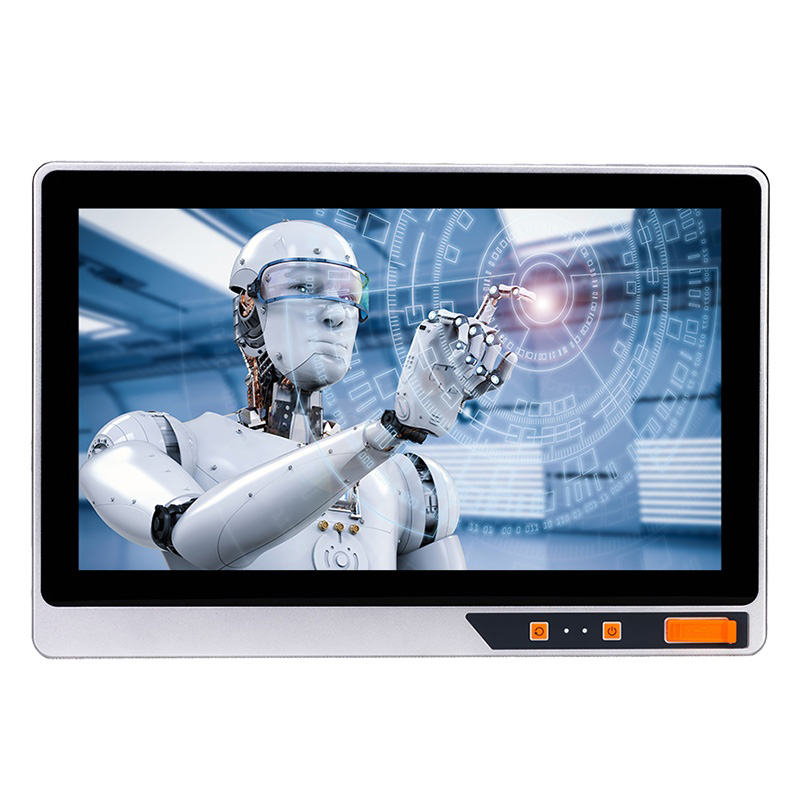
Optimizing a 17 inch industrial panel PC requires mapping the software interface directly to human biomechanics. This process is governed by Fitts's Law. This predictive model of human movement states the time required to rapidly move to a target area is a function of the ratio between the distance to the target and the width of the target. In the context of a 17-inch screen, critical buttons must be large and positioned close to the operator's natural resting hand position. Forcing an operator to repeatedly reach across the full 13.3-inch width of the screen to hit a small target drastically increases task time. It also spikes the probability of input errors.
To apply this law effectively, divide the 17-inch display area into three distinct interaction zones based on reach efficiency and physical strain:
Primary Zone (Bottom and Center): Reserve this area exclusively for high-frequency actions. Start, Stop, digital Emergency Stop, and sequence progression belong here. Accessing this zone requires minimum shoulder extension. It allows the operator to keep their elbow close to their body, maximizing speed and accuracy.
Secondary Zone (Middle Sides): Positioned along the left and right edges of the mid-screen. Utilize this zone for navigation menus, recipe selection, and parameter adjustments. It requires slight arm extension but remains within a comfortable rotational arc for the wrist and forearm.
Tertiary Zone (Top Edge and Far Corners): Reaching the top corners of a 17-inch screen requires full arm extension and shoulder engagement. Reserve this zone strictly for passive data display, system status indicators, or infrequent administrative tasks. These tasks should not occur during standard production cycles.
Failing to map these zones correctly leads directly to the gorilla arm effect. This phenomenon describes the severe muscular fatigue caused by holding an unsupported arm elevated in front of the body during prolonged touch screen use. When high-frequency controls sit at the top of a vertically mounted 17-inch screen, the operator's deltoid and bicep muscles fatigue rapidly. This leads to slower reaction times and physical discomfort. The primary structural solution to mitigate this fatigue is altering the mounting angle. Angling the screen between 30 and 45 degrees off the vertical axis allows the operator's arm to rest at a more natural downward trajectory. This supports a neutral wrist posture and shifts the physical load away from the shoulder joint.
Touch zone mapping must also account for parallax errors and gloved operation. When viewing a 17-inch screen from an angle, the thickness of the protective glass creates a visual displacement. The graphic on the LCD does not perfectly align with the actual touch sensor grid from the user's perspective. To ensure accuracy regardless of the operator's exact viewing angle or height, you must oversize touch targets. For bare-hand operation, a minimum target size of 15mm x 15mm prevents adjacent button presses. In heavy industrial environments where operators wear thick leather or nitrile gloves, increase the minimum touch target size to 20mm x 20mm or larger. This ensures reliable actuation even when tactile feedback is severely reduced by the PPE.
The physical integration of a panel PC must adapt to the specific demands of the workflow it controls. A one-size-fits-all mounting approach inevitably compromises performance. When deploying a CNC control touch computer, the primary success criteria revolve around rapid input, standing operation, and resilience to ambient factory glare. CNC operators constantly shift their focus between the cutting tool inside the machine envelope and the digital control interface. The panel must facilitate this rapid visual transition without requiring the operator to drastically change their posture.
For a standing CNC operator, optimal placement involves mounting the panel so the center of the 17-inch screen sits roughly 40 to 45 inches from the floor. This height places the primary touch zone precisely at the natural resting height of the operator's hands. The screen must be tilted upward at a 15 to 30-degree angle. This upward tilt serves two purposes. It accommodates operators of varying heights without requiring taller individuals to bend their necks downward. It also positions the screen face perpendicular to the operator's line of sight, maximizing the viewing angle and reducing overhead glare from factory lighting.
Conversely, configuring an industrial inspection workstation demands a completely different ergonomic approach. The success criteria here prioritize high visual fidelity, seated or sit-stand operation, and prolonged visual focus. Quality assurance inspectors spend extended periods analyzing high-resolution images of manufactured parts. They search for microscopic defects. This task requires intense concentration and a stable, supported physical posture to prevent fatigue-induced errors.
For an inspection workstation, mount the panel significantly closer to the user. Keep it between 18 and 22 inches based on real eye-to-screen measurements. Because the operator is seated, you must carefully calibrate the vertical height to protect the cervical spine. The top edge of the 17-inch monitor should sit exactly at or slightly below the operator's natural eye level. This positioning allows the inspector to view the entire screen by simply lowering their gaze, maintaining a neutral neck posture. If the screen sits too high, forcing the inspector to look upward, it will rapidly induce neck strain and headaches. This degrades their ability to perform accurate defect analysis over an eight-hour shift.
Follow these steps when setting up a new workstation:
Measure the average eye height of the seated or standing operators.
Determine the maximum comfortable reach distance for the shortest operator.
Select a mounting bracket that provides the necessary tilt to eliminate overhead glare.
Test the interface with the exact gloves the operators will wear on the floor.
The physical placement of a 17-inch panel PC dictates the necessary hardware specifications. Selecting the wrong mounting hardware or panel technology based on the intended ergonomic setup will result in a compromised deployment. The first major trade-off involves mounting solutions versus structural rigidity. Articulating VESA arms offer maximum adjustability. They allow operators of different heights to pull the screen closer, tilt it, or swing it out of the way. However, this flexibility comes at the cost of rigidity. Extended VESA arms act as levers. Every touch input causes the screen to bounce or vibrate. This bounce makes rapid, precise touch targeting nearly impossible and accelerates operator frustration.
If the workflow requires high-frequency, rapid touch inputs, flush panel mounts or heavy-duty pedestal mounts are vastly superior. These solutions offer absolute rigidity and zero screen bounce. They absorb the physical force of the operator's hand. The trade-off is that they are ergonomically fixed. If a pedestal mount is installed at the wrong height, it cannot be easily adjusted. This makes the initial mathematical calculation of viewing distance and touch zones absolutely mandatory prior to drilling holes in the factory floor or machine chassis.
Mounting height and angle directly dictate the required panel technology. LCD panels suffer from color inversion and contrast loss when viewed from extreme angles. If a 17-inch screen must be mounted above eye level or viewed from steep side angles, an In-Plane Switching (IPS) panel is mandatory. IPS technology maintains color accuracy and readability up to 178 degrees horizontally and vertically. Utilizing a cheaper Twisted Nematic (TN) panel in an off-angle mounting position will result in a washed-out image. This renders complex SCADA graphics unreadable and forces the operator to physically move in front of the screen to verify data.
Touch zone planning must align with touch sensor selection. Projected Capacitive (PCAP) touch screens offer zero-pressure actuation. They respond to the electrical field of a bare finger or specialized conductive glove. This lack of physical resistance drastically reduces finger and wrist fatigue in high-frequency primary touch zones. However, if the environment requires heavy, non-conductive leather gloves, or if the screen is subjected to heavy water spray, a Resistive touch sensor is required. Resistive screens rely on physical pressure to register an input. Because they require actual force, the mounting hardware must be exceptionally rigid to absorb the push without flexing. Touch targets must be designed even larger to accommodate the heavier, less precise physical interaction.
Hardware Component | Ergonomic Impact | Best Use Case | Implementation Risk |
|---|---|---|---|
Articulating VESA Arm | High adjustability for varying operator heights. | Multi-user inspection stations, sit-stand desks. | Screen bounce during high-frequency touch inputs. |
Flush/Pedestal Mount | Zero bounce, highly stable touch surface. | CNC controls, heavy machinery HMIs. | Fixed position; poor initial height calculation causes permanent strain. |
IPS Panel Technology | Maintains clarity at extreme viewing angles. | Screens mounted above eye level or viewed from the side. | Washed out colors if substituted with TN panels. |
PCAP Touch Sensor | Zero-pressure input reduces finger fatigue. | High-frequency data entry, bare-hand operation. | Struggles with heavy non-conductive gloves or heavy water exposure. |
Resistive Touch Sensor | Registers input via physical pressure. | Heavy PPE environments, extreme dirt/grease. | Requires rigid mounting to absorb push force; increases fatigue over time. |
Create a 1:1 cardboard or digital mockup of the 17-inch interface and mount it at the proposed height on the actual machinery.
Have multiple operators of varying heights physically simulate the workflow to identify reach constraints and true eye-to-screen distances.
Audit the software UI to ensure all high-frequency controls are located in the primary touch zone and scaled appropriately for gloved operation.
Test the planned mounting hardware for rigidity to ensure it can absorb the physical force of continuous touch interaction without bouncing.
We provides 17-inch industrial panel PCs designed for automation, machine control, and HMI applications. We offer customization options including processors, touchscreens, interfaces, and mounting solutions.
✔ Industrial-grade design
✔ Touchscreen customization
✔ Fanless cooling options
✔ OEM/ODM support
A: For touch interaction, the ideal distance is dictated by comfortable arm reach, typically 20 to 24 inches. For passive visual monitoring without touch, the distance can extend to 25 to 35 inches depending on the complexity of the on-screen content and the visual acuity of the operator.
A: Dense, information-heavy interfaces like complex SCADA schematics require the operator to be closer (18-22 inches) to maintain visual acuity and read small text. Conversely, simple interfaces with large HMI pushbuttons can be comfortably operated and monitored from further away.
A: The center of the screen should generally be positioned between 40 and 46 inches from the floor. It should be angled slightly upward, ensuring the primary touch zones at the bottom of the screen are easily reachable without bending the back or causing excessive shoulder extension.
A: To prevent input errors and accommodate parallax, touch targets on a 17-inch screen should be at least 15mm x 15mm for bare-hand operation. If operators wear thick protective gloves, the minimum target size must be increased to 20mm x 20mm or larger to ensure reliable actuation.
A: Screen bounce occurs when mounting hardware, like extended VESA arms, lacks rigidity. When an operator touches the screen, the panel vibrates or moves backward. This makes rapid, precise touch targeting difficult, increases input errors, and causes significant operator frustration during high-speed workflows.
A: If a panel is mounted above eye level or viewed from the side, standard TN panels will suffer from color inversion and contrast loss, making data unreadable. In these off-axis mounting scenarios, an IPS panel is required to maintain visual clarity and color accuracy across a 178-degree viewing arc.


